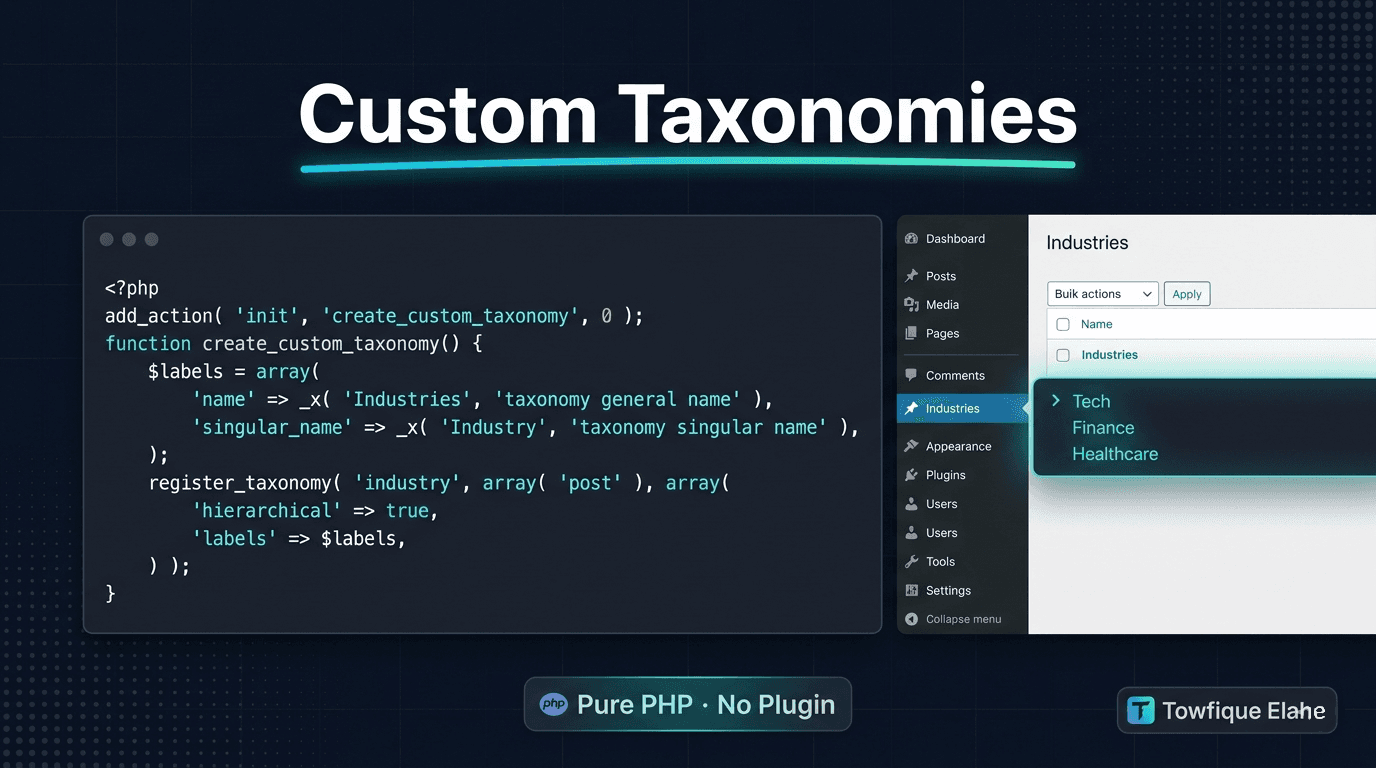
How to Register Custom Taxonomies in WordPress with PHP
Custom taxonomies let you organize any post type with your own classification system — beyond categories and tags. Learn how to register hierarchical and flat taxonomies in pure PHP, connect them to custom post types, and build smarter content structures for any WordPress project.
What Are Custom Taxonomies in WordPress?
WordPress ships with two built-in taxonomies: Categories (hierarchical) and Tags (flat). They work well for blog posts — but the moment you introduce Custom Post Types like Projects, Services, Team Members, or Properties, you need your own classification system.
That's exactly what custom taxonomies solve. A taxonomy is a grouping mechanism. Register a custom one and you can classify any post type however your content structure demands — by Industry, Project Type, Skill, Location, Department, or anything else meaningful to the site.
This guide covers registering both hierarchical taxonomies (like categories) and flat taxonomies (like tags) in pure PHP — no plugins required.
The Core Function: register_taxonomy()
WordPress provides register_taxonomy() to register a new taxonomy. Hook it into init, the same as Custom Post Types:
function orbit_register_industry_taxonomy() {
    $labels = array(
        'name'              => 'Industries',
        'singular_name'     => 'Industry',
        'search_items'      => 'Search Industries',
        'all_items'         => 'All Industries',
        'parent_item'       => 'Parent Industry',
        'parent_item_colon' => 'Parent Industry:',
        'edit_item'         => 'Edit Industry',
        'update_item'       => 'Update Industry',
        'add_new_item'      => 'Add New Industry',
        'new_item_name'     => 'New Industry Name',
        'menu_name'         => 'Industries',
    );

    $args = array(
        'labels'       => $labels,
        'hierarchical' => true,
        'public'       => true,
        'rewrite'      => array( 'slug' => 'industry' ),
        'show_in_rest' => true,
    );

    register_taxonomy( 'industry', array( 'project' ), $args );
}
add_action( 'init', 'orbit_register_industry_taxonomy' );
The third argument to register_taxonomy() is the array of post types to attach it to. Here, the industry taxonomy is connected to the project CPT. You can attach it to multiple post types by adding more items to that array.
Hierarchical vs. Flat Taxonomies
The key difference is the hierarchical argument:
'hierarchical' => true— behaves like Categories. Terms can have parent-child relationships. Displayed as checkboxes with nesting in the post editor.'hierarchical' => false— behaves like Tags. Terms are flat. Displayed as a tag input field in the post editor.
For most structured content (Industries, Locations, Departments, Project Types), hierarchical is the right choice. For loose labels (Skills, Technologies, Keywords), flat works better.
Registering a Flat Taxonomy (Tag-Style)
Here's the same pattern for a flat Skills taxonomy attached to a Team Members CPT:
function orbit_register_skills_taxonomy() {
    $labels = array(
        'name'                       => 'Skills',
        'singular_name'              => 'Skill',
        'search_items'               => 'Search Skills',
        'popular_items'              => 'Popular Skills',
        'all_items'                  => 'All Skills',
        'edit_item'                  => 'Edit Skill',
        'update_item'                => 'Update Skill',
        'add_new_item'               => 'Add New Skill',
        'new_item_name'              => 'New Skill Name',
        'separate_items_with_commas' => 'Separate skills with commas',
        'add_or_remove_items'        => 'Add or remove skills',
        'choose_from_most_used'      => 'Choose from the most used skills',
        'menu_name'                  => 'Skills',
    );

    $args = array(
        'labels'       => $labels,
        'hierarchical' => false,
        'public'       => true,
        'rewrite'      => array( 'slug' => 'skill' ),
        'show_in_rest' => true,
    );

    register_taxonomy( 'skill', array( 'team_member' ), $args );
}
add_action( 'init', 'orbit_register_skills_taxonomy' );
Connecting a Taxonomy to Multiple Post Types
A single taxonomy can classify multiple post types. If both your project and case_study CPTs should share the same industry taxonomy, just pass both in the post types array:
register_taxonomy( 'industry', array( 'project', 'case_study' ), $args );
Alternatively, you can connect an existing taxonomy to an additional post type later using register_taxonomy_for_object_type():
register_taxonomy_for_object_type( 'industry', 'case_study' );
This is useful when the taxonomy is registered in one place (e.g., a plugin) and you need to extend it from your theme.
Custom Rewrite Slugs and Archive URLs
The rewrite argument controls the URL structure for taxonomy archive pages. With 'slug' => 'industry', a term archive for "Technology" would be accessible at:
yoursite.com/industry/technology/
You can also enable hierarchical URL slugs for nested terms:
'rewrite' => array(
    'slug'         => 'industry',
    'hierarchical' => true,
),
With this, a child term "SaaS" under "Technology" would produce:
yoursite.com/industry/technology/saas/
As with CPTs, always flush rewrite rules after registering new taxonomies by visiting Settings → Permalinks → Save Changes.
Querying Posts by Taxonomy Term
Once your taxonomy is set up and terms are assigned to posts, you can filter queries using a tax_query:
$args = array(
    'post_type' => 'project',
    'tax_query' => array(
        array(
            'taxonomy' => 'industry',
            'field'    => 'slug',
            'terms'    => 'technology',
        ),
    ),
);

$query = new WP_Query( $args );
To query by multiple terms (e.g., projects in either Technology or Finance):
'tax_query' => array(
    array(
        'taxonomy' => 'industry',
        'field'    => 'slug',
        'terms'    => array( 'technology', 'finance' ),
        'operator' => 'IN',
    ),
),
Use 'operator' => 'AND' to require posts to belong to all specified terms simultaneously.
Displaying Taxonomy Terms in Templates
To output taxonomy terms for a post inside a template or loop:
$terms = get_the_terms( get_the_ID(), 'industry' );

if ( $terms && ! is_wp_error( $terms ) ) {
    foreach ( $terms as $term ) {
        echo '<a href="' . esc_url( get_term_link( $term ) ) . '">'
            . esc_html( $term->name )
            . '</a>';
    }
}
get_the_terms() returns an array of term objects. Each has name, slug, term_id, description, and parent. Use get_term_link() to generate the correct archive URL for each term.
Adding Custom Fields to Taxonomy Terms
WordPress lets you hook into the add/edit term forms to store extra data per term. This is useful for things like adding an icon, color code, or description to each taxonomy term:
// Add field to "Add Term" form
function orbit_industry_add_term_fields() {
    echo '<div class="form-field">
        <label for="industry_color">Color</label>
        <input type="text" name="industry_color" id="industry_color" />
    </div>';
}
add_action( 'industry_add_form_fields', 'orbit_industry_add_term_fields' );

// Save the field
function orbit_save_industry_term_fields( $term_id ) {
    if ( isset( $_POST['industry_color'] ) ) {
        update_term_meta( $term_id, 'industry_color', sanitize_text_field( $_POST['industry_color'] ) );
    }
}
add_action( 'created_industry', 'orbit_save_industry_term_fields' );
add_action( 'edited_industry', 'orbit_save_industry_term_fields' );
Retrieve it later with get_term_meta( $term_id, 'industry_color', true ).
Pre-Populating Taxonomy Terms on Theme Activation
For client projects where taxonomy terms are known in advance — like a fixed list of service categories or industries — you can pre-populate them programmatically on theme activation rather than making clients enter them manually:
function orbit_insert_default_industries() {
    $industries = array( 'Technology', 'Finance', 'Healthcare', 'E-Commerce', 'Real Estate' );

    foreach ( $industries as $industry ) {
        if ( ! term_exists( $industry, 'industry' ) ) {
            wp_insert_term( $industry, 'industry' );
        }
    }
}
register_activation_hook( __FILE__, 'orbit_insert_default_industries' );
The term_exists() check prevents duplicates if the function runs more than once.
Taxonomy Templates in Your Theme
WordPress follows a template hierarchy for taxonomy archive pages. For a taxonomy named industry, the lookup order is:
taxonomy-industry-{term-slug}.php— for a specific termtaxonomy-industry.php— for all terms in this taxonomytaxonomy.php— fallback for any taxonomyarchive.php— general archive fallbackindex.php— final fallback
Create taxonomy-industry.php in your theme to give the taxonomy archive its own layout — listing all posts under that term with any custom term metadata like color or icon.
Organising Taxonomy Code in Large Projects
For themes and plugins with multiple CPTs and taxonomies, keep registrations organized in a dedicated file — inc/taxonomies.php — and include it from functions.php:
require_once get_template_directory() . '/inc/taxonomies.php';
This keeps functions.php clean and makes it easy to audit all registered taxonomies in one place, especially important when handing off projects to clients or other developers.
Final Thoughts
Custom taxonomies are the backbone of any content-rich WordPress site. Once you're comfortable with register_taxonomy(), you can build filtering systems, layered navigation, and structured archives without ever reaching for a plugin.
The pattern is consistent — register the taxonomy, attach it to post types, flush rewrite rules, build your template. That workflow applies whether you're building a job board filtered by location and sector, a portfolio filtered by industry and project type, or a property listing filtered by city and property class.
In the next post, we'll look at building custom metaboxes with the CodeStar Framework — adding structured fields to any CPT or taxonomy without ACF.