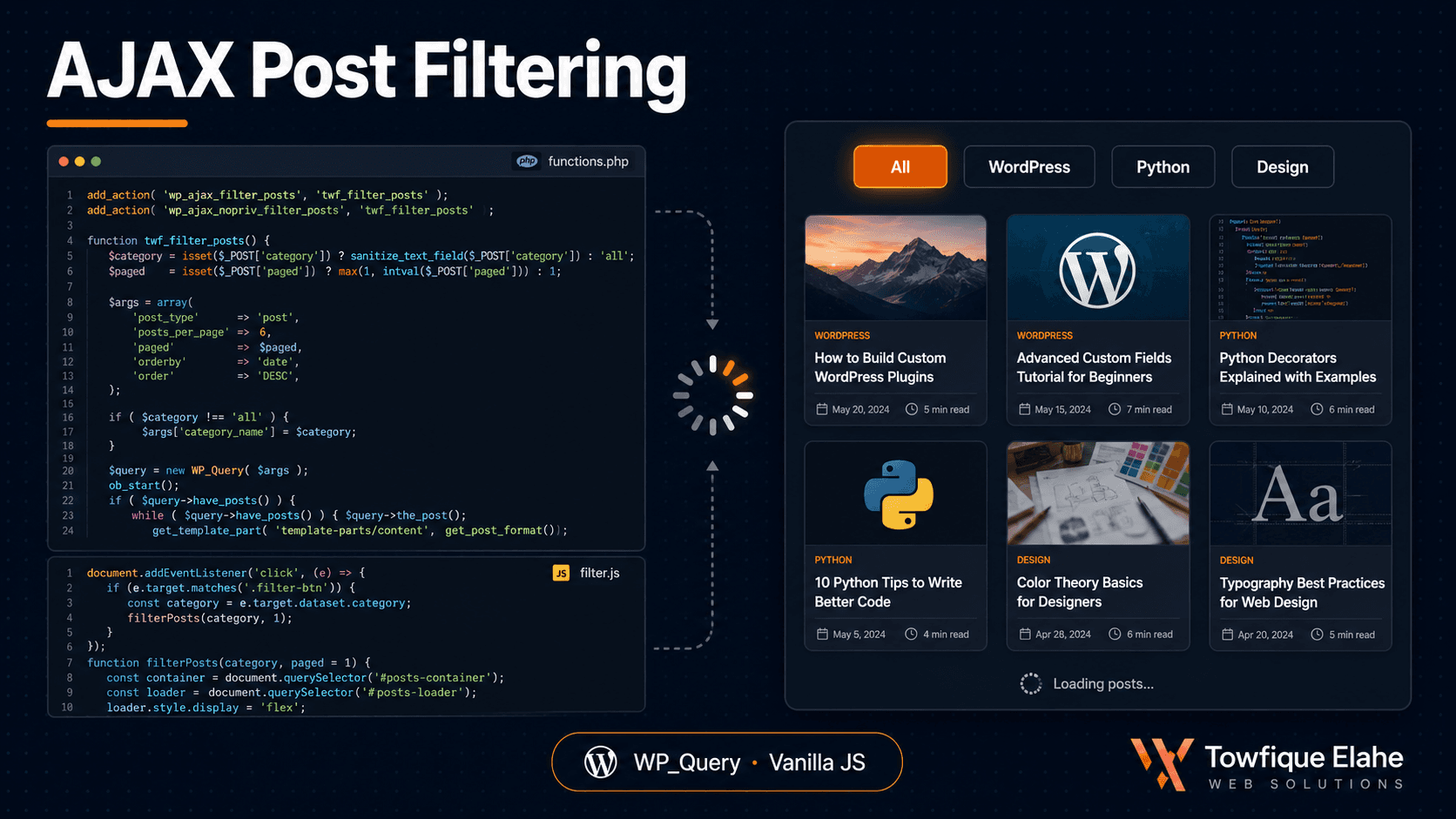
How to Build AJAX Post Filtering in WordPress with WP_Query
Letting visitors filter posts without reloading the page is one of the most requested front-end features on WordPress projects. Learn how to build a complete AJAX filtering system for any Custom Post Type using WP_Query, the WordPress AJAX API, and vanilla JavaScript — no plugins, no jQuery dependency.
Why AJAX Filtering?
When a site has dozens or hundreds of posts — portfolio projects, job listings, products, articles — visitors need a way to narrow down what they see. The traditional approach reloads the entire page for every filter click, which feels slow and clunky.
AJAX filtering solves this. The user clicks a filter, JavaScript sends a background request to the server, WordPress runs a fresh WP_Query, and only the results section updates — no full page reload. The experience is instant and modern.
This guide builds a complete AJAX filtering system from scratch for a custom post type, using the native WordPress AJAX API and vanilla JavaScript — no jQuery, no plugins.
How WordPress AJAX Works
WordPress routes all AJAX requests through a single endpoint: wp-admin/admin-ajax.php. You register a server-side handler function and hook it to a custom action name. The front end sends a request specifying that action, and WordPress calls your handler.
There are two hooks for every action:
wp_ajax_{action}— fires for logged-in userswp_ajax_nopriv_{action}— fires for logged-out (public) visitors
For a public-facing filter, you need both — otherwise the filter works for you while logged into the admin but silently fails for regular visitors. This is the single most common mistake when building AJAX features in WordPress.
Step 1: Enqueue the Script and Pass Data
First, enqueue your JavaScript file and use wp_localize_script() to pass the AJAX URL and a security nonce into the script. The nonce protects the endpoint against unauthorized requests.
function orbit_enqueue_filter_assets() {
    wp_enqueue_script(
        'orbit-filter',
        get_template_directory_uri() . '/assets/js/filter.js',
        array(),
        '1.0.0',
        true
    );

    wp_localize_script( 'orbit-filter', 'orbitFilter', array(
        'ajax_url' => admin_url( 'admin-ajax.php' ),
        'nonce'    => wp_create_nonce( 'orbit_filter_nonce' ),
    ) );
}
add_action( 'wp_enqueue_scripts', 'orbit_enqueue_filter_assets' );
The orbitFilter object is now available globally in filter.js, giving the script the endpoint URL and nonce it needs.
Step 2: Build the Filter UI
Output the filter buttons dynamically from your taxonomy terms, plus a container that will hold the results. In your template file (e.g., archive-project.php):
<div class="filter-bar">
    <button class="filter-btn active" data-term="all">All</button>

    <?php
    $terms = get_terms( array(
        'taxonomy'   => 'industry',
        'hide_empty' => true,
    ) );

    foreach ( $terms as $term ) :
    ?>
        <button class="filter-btn" data-term="<?php echo esc_attr( $term->slug ); ?>">
            <?php echo esc_html( $term->name ); ?>
        </button>
    <?php endforeach; ?>
</div>

<div id="filter-results">
    <?php
    // initial unfiltered load handled by the main query loop
    get_template_part( 'template-parts/project', 'grid' );
    ?>
</div>
Each button stores its taxonomy term slug in a data-term attribute. The "All" button uses all as a sentinel value to clear the filter.
Step 3: Create a Reusable Results Template
Move the post card markup into its own template part so both the initial PHP load and the AJAX response render results identically. Create template-parts/project-grid.php:
<?php
$query = isset( $filtered_query ) ? $filtered_query : $wp_query;

if ( $query->have_posts() ) :
    echo '<div class="project-grid">';

    while ( $query->have_posts() ) : $query->the_post();
    ?>
        <article class="project-card">
            <a href="<?php the_permalink(); ?>">
                <?php if ( has_post_thumbnail() ) : ?>
                    <div class="project-thumb">
                        <?php the_post_thumbnail( 'medium_large' ); ?>
                    </div>
                <?php endif; ?>
                <h3><?php the_title(); ?></h3>
                <p><?php echo esc_html( get_the_excerpt() ); ?></p>
            </a>
        </article>
    <?php
    endwhile;

    echo '</div>';

    wp_reset_postdata();
else :
    echo '<p class="no-results">No projects found.</p>';
endif;
Using a shared template part guarantees the markup is consistent whether posts are rendered on first load or after an AJAX filter — no duplicated HTML, no drift between the two.
Step 4: Write the Server-Side AJAX Handler
This is the core. The handler verifies the nonce, reads the requested term, builds a WP_Query with a tax_query when a specific term is requested, renders the template part, and returns the HTML.
function orbit_filter_projects() {

    // Verify the nonce for security
    check_ajax_referer( 'orbit_filter_nonce', 'nonce' );

    $term = isset( $_POST['term'] ) ? sanitize_text_field( $_POST['term'] ) : 'all';

    $args = array(
        'post_type'      => 'project',
        'posts_per_page' => 9,
        'orderby'        => 'date',
        'order'          => 'DESC',
    );

    // Only add a tax_query if a specific term was requested
    if ( $term !== 'all' ) {
        $args['tax_query'] = array(
            array(
                'taxonomy' => 'industry',
                'field'    => 'slug',
                'terms'    => $term,
            ),
        );
    }

    $filtered_query = new WP_Query( $args );

    // Capture the template output into a string
    ob_start();
    set_query_var( 'filtered_query', $filtered_query );
    get_template_part( 'template-parts/project', 'grid' );
    $html = ob_get_clean();

    wp_send_json_success( array( 'html' => $html ) );
}
add_action( 'wp_ajax_orbit_filter_projects', 'orbit_filter_projects' );
add_action( 'wp_ajax_nopriv_orbit_filter_projects', 'orbit_filter_projects' );
Key points in this handler:
check_ajax_referer()validates the nonce — if it fails, the request dies immediately.- Output buffering (
ob_start()/ob_get_clean()) captures the rendered template part into a string instead of echoing it. set_query_var()passes the custom query into the template part so it uses the filtered results.wp_send_json_success()returns a clean JSON response and handles the correct headers andwp_die()automatically.- Both hooks are registered — logged-in and public — so the filter works for everyone.
Step 5: The Front-End JavaScript
Now wire up filter.js with vanilla JavaScript using the Fetch API. No jQuery required.
document.addEventListener('DOMContentLoaded', function () {

    const buttons = document.querySelectorAll('.filter-btn');
    const results = document.getElementById('filter-results');

    buttons.forEach(function (button) {
        button.addEventListener('click', function () {

            // Update active button state
            buttons.forEach(b => b.classList.remove('active'));
            button.classList.add('active');

            const term = button.getAttribute('data-term');

            // Show a loading state
            results.classList.add('loading');

            // Build the request payload
            const formData = new FormData();
            formData.append('action', 'orbit_filter_projects');
            formData.append('nonce', orbitFilter.nonce);
            formData.append('term', term);

            fetch(orbitFilter.ajax_url, {
                method: 'POST',
                body: formData,
            })
            .then(response => response.json())
            .then(data => {
                if (data.success) {
                    results.innerHTML = data.data.html;
                }
                results.classList.remove('loading');
            })
            .catch(error => {
                console.error('Filter error:', error);
                results.classList.remove('loading');
            });

        });
    });

});
The flow: a click updates the active button, shows a loading state, sends a FormData POST to admin-ajax.php with the action, nonce, and term, then swaps the results HTML with the server response.
Step 6: Add a Loading State with CSS
A small visual cue during the request makes the interaction feel responsive. A simple fade works well:
#filter-results {
    transition: opacity 0.2s ease;
}

#filter-results.loading {
    opacity: 0.4;
    pointer-events: none;
}

.filter-btn {
    cursor: pointer;
    transition: all 0.2s ease;
}

.filter-btn.active {
    background: #0066FF;
    color: #fff;
}
Handling Multiple Filters at Once
To filter by multiple taxonomies simultaneously — say, industry and project type — collect all active filter values on the front end and pass them as separate parameters. Then build a multi-clause tax_query server-side:
$tax_query = array( 'relation' => 'AND' );

if ( ! empty( $_POST['industry'] ) && $_POST['industry'] !== 'all' ) {
    $tax_query[] = array(
        'taxonomy' => 'industry',
        'field'    => 'slug',
        'terms'    => sanitize_text_field( $_POST['industry'] ),
    );
}

if ( ! empty( $_POST['project_type'] ) && $_POST['project_type'] !== 'all' ) {
    $tax_query[] = array(
        'taxonomy' => 'project_type',
        'field'    => 'slug',
        'terms'    => sanitize_text_field( $_POST['project_type'] ),
    );
}

if ( count( $tax_query ) > 1 ) {
    $args['tax_query'] = $tax_query;
}
The 'relation' => 'AND' ensures posts must match every active filter. Switch to 'OR' if you want posts matching any selected filter instead.
Adding AJAX Pagination (Load More)
The same pattern extends to a "Load More" button. Pass a paged value from the front end, increment it on each click, and append the new results instead of replacing them:
// Server-side: add paged to the query args
$paged = isset( $_POST['page'] ) ? absint( $_POST['page'] ) : 1;
$args['paged'] = $paged;

// Front-end: append instead of replace
results.insertAdjacentHTML('beforeend', data.data.html);
Track the current page in a JavaScript variable, and hide the Load More button when $filtered_query->max_num_pages is reached — pass that value back in the JSON response so the front end knows when to stop.
Security Checklist
- Always verify the nonce with
check_ajax_referer()— never trust an unauthenticated request. - Sanitize every input —
sanitize_text_field()for strings,absint()for numbers, before they touch the query. - Register both
wp_ajax_andwp_ajax_nopriv_hooks for public filters. - Never pass raw user input into a query without sanitization — even though
WP_Queryparameterizes values, sanitizing is a non-negotiable habit. - Escape all output in the template part with
esc_html(),esc_url(), andesc_attr().
Final Thoughts
AJAX filtering with WP_Query is a foundational front-end pattern that applies to portfolios, job boards, product catalogs, blog archives, and directory sites. Once you understand the flow — enqueue and localize, build the UI, handle the request server-side with output buffering, and swap the HTML on the front end — you can adapt it to almost any dynamic listing requirement.
Because it uses the native WordPress AJAX API and a shared template part, the result is clean, maintainable, and plugin-free. The same architecture scales from a simple three-button filter to a full multi-taxonomy faceted search with pagination.
In the next post, we'll look at optimizing these queries for performance — caching WP_Query results with transients so heavy filtered archives stay fast even under load.