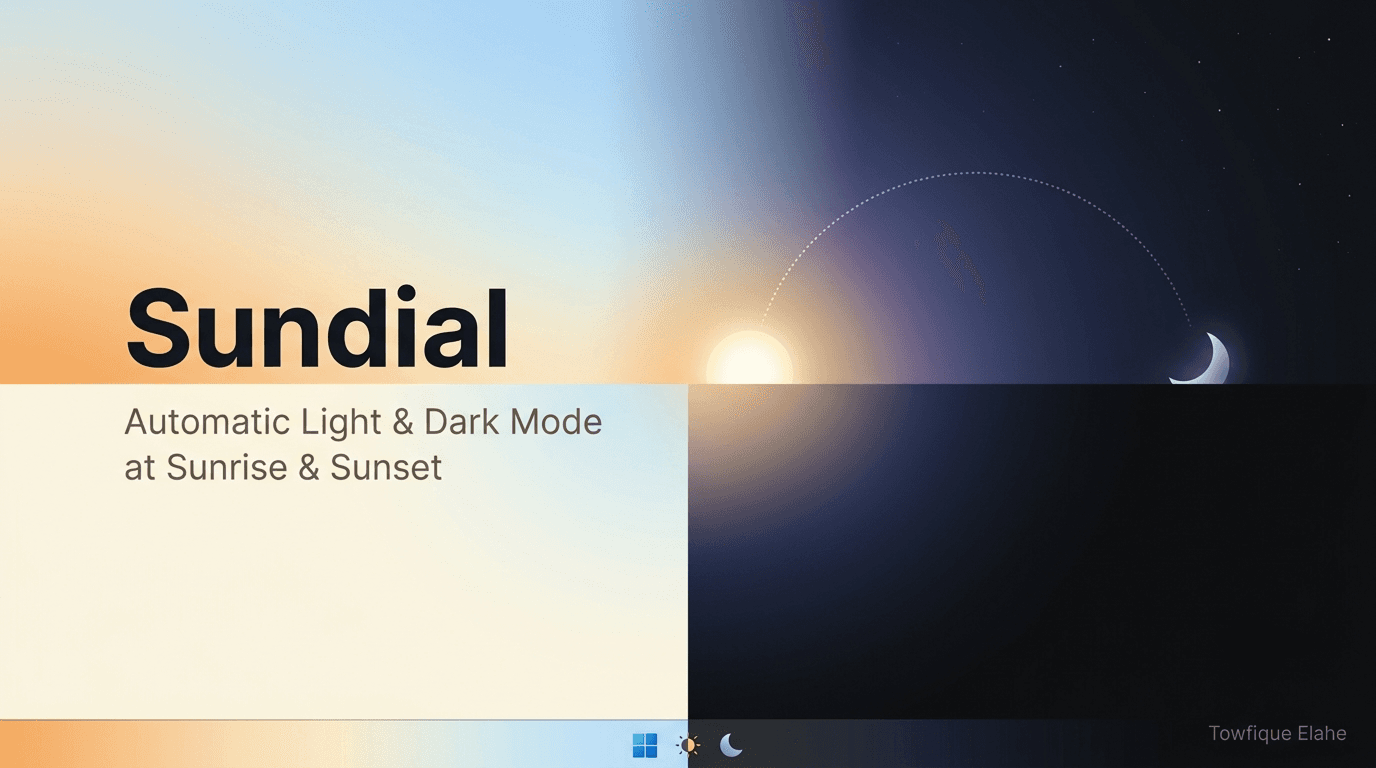
Sundial - Automatic Windows Light/Dark Mode at Sunrise & Sunset
A tiny Windows tray app that automatically switches between Light and Dark mode at your local sunrise and sunset—the scheduling Windows forgot to include
A lightweight Windows system-tray app that automatically switches Windows between Light and Dark mode at your local sunrise and sunset—filling the scheduling gap in Settings → Personalization → Colors. Sundial checks every minute and re-applies on launch, using real astronomical sun times from the astral library. Location is either Auto (detected from your IP) or Fixed (enter coordinates, works offline). Features one-click start on Windows sign-in with no admin rights, optional app-theme switching, and instant taskbar repaint. Runs quietly with a sun/moon tray icon, plus manual "Switch theme now" and "Re-apply" actions. Run directly via Python 3.9+ or build a standalone .exe. Windows only.
Overview
Sundial is a lightweight Windows system-tray app that automatically switches Windows between Light and Dark mode at your local sunrise and sunset. It fills the gap left by Windows itself: Settings → Personalization → Colors lets you choose a color mode but offers no scheduling. Sundial adds that missing automation, running quietly in the background and keeping your desktop in sync with the sun—no window, no fuss.
The Problem
Windows users who care about their eyes and their aesthetic hit a frustrating limitation:
- Windows lets you pick Light or Dark mode, but there's no built-in schedule to switch automatically
- Manually toggling the theme twice a day through Settings is tedious and easy to forget
- Staring at a bright screen after dark strains the eyes; a dark screen in daylight can be hard to read
- Third-party solutions are often bloated, require admin rights, or demand manual time entry
- Fixed-time schedules don't track the changing sunrise/sunset across seasons
Users want their system theme to follow the natural day/night cycle automatically—accurately, quietly, and without hassle.
Solution
Sundial automates Windows theme switching based on real astronomical sunrise and sunset times for your location. It lives in the system tray, checks the time every minute, and flips the theme exactly when the sun does—light by day, dark by night—adapting automatically as those times shift through the year.
Core capabilities:
- Automatic switching — Light at sunrise, dark at sunset, every day
- Accurate sun times — Real sunrise/sunset from the astral library, anchored to your location's timezone
- Auto or fixed location — Detect your city from your IP, or enter exact coordinates
- System tray app — Runs quietly with a sun/moon icon; no window unless you open Settings
- Start on sign-in — One checkbox; uses the per-user registry key with no admin rights needed
- Instant shell refresh — Taskbar repaints immediately when the theme changes
- Optional app theme — Switch app theme alongside the system/taskbar theme
- Manual controls — Switch theme now or re-apply for the current time from the tray menu
How It Works
Behind the Scenes
- Determine location — Auto mode resolves your approximate coordinates and timezone from your IP; Fixed mode uses coordinates you enter with your PC's timezone
- Calculate sun times — The astral library computes today's sunrise and sunset, anchored to the location's own timezone for accuracy
- Check every minute — Sundial compares the current time to sunrise/sunset and determines the correct mode
- Write the theme — It sets SystemUsesLightTheme (and optionally AppsUseLightTheme) in the registry—the same keys the Settings app uses
- Refresh the shell — A WM_SETTINGCHANGE broadcast makes the taskbar repaint immediately
- Re-apply on launch — On startup, Sundial applies the correct theme right away so it's always accurate
User Experience
- Launch — A sun/moon icon appears in the system tray
- Configure once — Right-click → Settings to choose Auto or Fixed location and preferences
- Forget about it — Sundial runs silently, switching themes as the sun rises and sets
- Manual override — Use "Switch theme now" or "Re-apply for current time" whenever you like
Key Features
Automatic Theme Switching
- Switches Windows to Light mode at sunrise
- Switches Windows to Dark mode at sunset
- Checks every minute and re-applies on launch, so it's always correct
- Adapts automatically as sunrise/sunset shift through the seasons
Location Detection
- Auto (IP) — Detects your city and timezone from your IP address
- Fixed — Enter a latitude/longitude and use your PC's timezone
- Preview today's sunrise/sunset for the chosen location
- Fixed mode works fully offline
Convenience & Integration
- System tray only — No window clutter; runs quietly in the background
- Start on sign-in — One checkbox, per-user Run registry key, no admin rights
- Optional app theme — Toggle AppsUseLightTheme alongside the system theme
- Immediate repaint — Taskbar and shell refresh instantly on theme change
- Manual tray actions — Switch theme now, or re-apply for the current time
Settings Reference
| Option | What It Does |
|---|---|
| Location → Auto (IP) | Looks up your approximate coordinates and timezone online |
| Location → Fixed | Uses the latitude/longitude you enter, with your PC's timezone |
| Start automatically | Launches Sundial when you sign in to Windows |
| Also switch app theme | Toggles AppsUseLightTheme as well as the system theme |
| Preview times | Shows today's sunrise/sunset for the chosen location |
| Switch theme now | Manual theme flip from the tray menu |
| Re-apply for current time | Forces the correct theme for the current moment |
Use Cases
- Eye comfort — Automatically reduce glare at night and improve readability by day
- Developers — Keep the whole OS and apps in sync with day/night without manual toggling
- Writers & designers — A comfortable, context-appropriate workspace all day
- Remote workers — Seamless theme transitions during long work-from-home days
- Aesthetes — A desktop that always matches the time of day
- Laptop users who travel — Auto location keeps sun times correct wherever you are
- Offline setups — Fixed coordinates keep switching accurate with no internet
Technical Specifications
- Platform: Windows only
- Language: Python 3.9+
- Dependencies: pystray (tray icon), Pillow (icon rendering), astral (sun calculations), tzdata (timezones)
- Theme mechanism: Writes SystemUsesLightTheme / AppsUseLightTheme under HKCU\Software\Microsoft\Windows\CurrentVersion\Themes\Personalize
- Shell refresh: WM_SETTINGCHANGE broadcast for instant taskbar repaint
- Autostart: Per-user Run registry key (no admin rights)
- Config storage: %APPDATA%\Sundial\config.json
- Check interval: Every minute, plus re-apply on launch
- Distribution: Run directly via run.bat, or build a standalone Sundial.exe via build.bat (no Python needed on target)
- License: GPL-2.0+
Installation & Setup
Option A: Run Without Building
- Install Python 3.9+ (tick "Add Python to PATH")
- Double-click run.bat
- A sun/moon icon appears in the tray
- Right-click → Settings… to configure
Option B: Build a Standalone .exe
- Double-click build.bat
- Find the app at dist\Sundial.exe
- Copy it anywhere and run it—no Python needed on the target machine
First-Time Configuration
- Right-click the tray icon → Settings…
- Choose Auto (IP) or Fixed location
- Optionally enable "Start automatically" and "Also switch app theme"
- Preview today's sunrise/sunset to confirm
- Close Settings—Sundial runs quietly from here
How the Theme Switch Works
Sunrise/sunset → astral library (anchored to location timezone) ↓ Every minute → compare current time to sun times ↓ Registry write → SystemUsesLightTheme / AppsUseLightTheme (1 = light, 0 = dark) ↓ Broadcast → WM_SETTINGCHANGE → taskbar repaints instantly
Why Choose Sundial
| Feature | Sundial | Windows built-in | Fixed-time scripts | Heavy utilities |
|---|---|---|---|---|
| Auto light/dark scheduling | ✓ Sunrise/sunset | ✗ None | ✓ Fixed only | Varies |
| Tracks seasonal sun times | ✓ Yes | ✗ | ✗ Manual updates | Some |
| No admin rights | ✓ Per-user | N/A | Varies | Often needs admin |
| Lightweight (tray only) | ✓ Minimal | N/A | ✓ | ✗ Bloated |
| Works offline | ✓ Fixed mode | N/A | ✓ | Varies |
| Standalone .exe option | ✓ Buildable | N/A | ✗ | Some |
| Cost | Free | Free | Free | Often paid |
Best Practices
- Use Auto if you travel — IP-based location keeps sun times correct wherever you are
- Use Fixed for privacy/offline — Enter coordinates once; no internet needed afterward
- Enable start on sign-in — So the theme is always correct from the moment you log in
- Enable app theme too — For a fully consistent light/dark experience across the OS
- Preview sun times — Confirm your location is set correctly after first configuring
- Build the .exe for other PCs — Distribute a single file to machines without Python
App Highlights
Set It and Forget It
- Configure once; runs silently forever
- Always correct thanks to per-minute checks and re-apply on launch
- Adapts automatically to seasonal changes
Lightweight & Respectful
- Tray-only, no window clutter
- No admin rights required
- Tiny footprint with minimal dependencies
Accurate & Flexible
- Real astronomical sun times via the astral library
- Auto or fixed location, online or offline
- Manual overrides always available
Repository Information
- Repository: github.com/towfique-elahe/sundial
- License: GPL-2.0+
- Platform: Windows
- Language: Python 3.9+
- Author: Towfique Elahe
- Author website: https://towfiqueelahe.com
- Status: Production-ready
What Users Say
- "Windows should have shipped this. My desktop now goes dark exactly when the sun sets—no more squinting at night." — Software Developer
- "Set it once and forgot it existed—which is exactly what I wanted. Runs silently in the tray and just works." — Remote Worker
- "Love that it uses real sunrise/sunset instead of a fixed clock. It follows the seasons automatically." — Photographer
- "No admin rights, no bloat, and I could build a single .exe for my other laptops. Perfect little utility." — IT Enthusiast
Getting Started
- Install Python 3.9+ (or build the standalone .exe)
- Run Sundial via run.bat
- Right-click the tray icon → Settings…
- Choose Auto or Fixed location
- Enable start on sign-in and app theme switching if desired
- Preview sun times to confirm
- Let Sundial handle the rest
Roadmap & Future Development
- Custom offset (switch X minutes before/after sun times)
- Optional wallpaper switching alongside theme
- Multiple manual schedules in addition to sun-based
- Accent color switching
- Smooth transition notifications
- City search for fixed location (name instead of coordinates)
- Portable config export/import
- Signed installer distribution